 Ex-Load Premium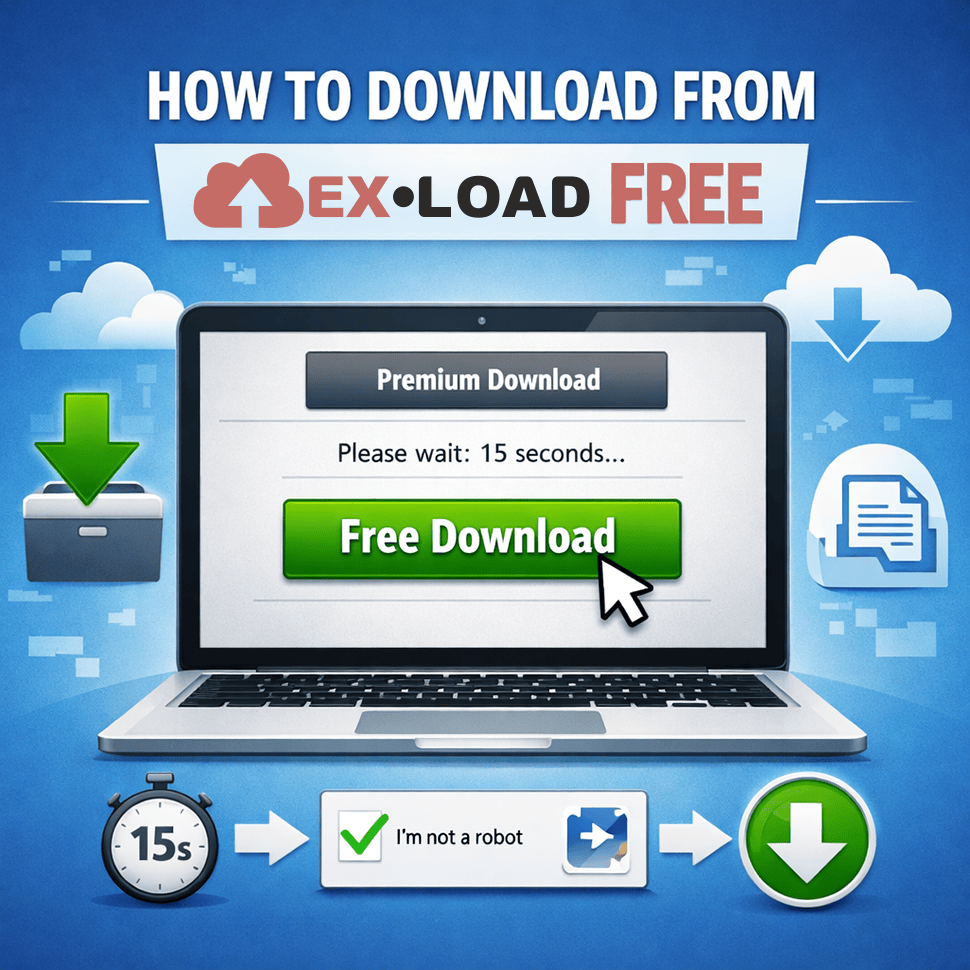
How to Download from Ex-Load for Free
How to Download from Ex-Load for Free (Step-by-Step Guide)
File-hosting platforms are widely used for sharing large files across the internet. One platform that often appears in download links is Ex-Load, a service that allows users to host and download files online.
If you’ve landed on an Ex-Load page and are unsure what to do next, you’re not alone. Many users find the interface confusing, especially when trying to access the Ex-Load free download option.
In this detailed Ex-Load download guide, you’ll learn exactly how to download from Ex-Load for free, avoid fake download buttons, and keep your device safe while downloading files.
Introduction to Ex-Load
Before diving into the tutorial, it’s helpful to understand what Ex-Load is and why it’s commonly used.
Ex-Load is a file hosting and sharing platform where users can upload files and generate download links to share with others. These files can include:
- Documents
- Software
- Media files
- Archives (ZIP/RAR)
- Large datasets
People often encounter Ex-Load links on forums, blogs, or resource websites.
The platform typically offers two types of access:
- Free download
- Premium download
The Ex-Load file download process for free users includes a few extra steps, which we’ll explain in detail below.
What Ex-Load Is and How It Works
Understanding how the platform operates will make the download from Ex-Load process much easier.
How File Hosting Services Work
Platforms like Ex-Load operate in three main stages:
- File Upload
A user uploads a file to the hosting server. - Link Generation
The platform generates a public download link. - File Download
Anyone with the link can download the file.
This system allows large files to be shared without email attachments or direct transfers.
Free vs Premium Access
Ex-Load usually offers two download modes:
| Feature | Free Download | Premium Download |
|---|---|---|
| Cost | Free | Paid |
| Speed | Limited | Faster |
| Waiting time | Yes | No |
| Ads | Yes | Few or none |
Most users simply use the Ex-Load free download option.
Step-by-Step Guide: How to Download from Ex-Load
If you’re wondering how to download from Ex-Load, follow these simple steps.
Step 1: Open the Download Link
First, click the Ex-Load link provided by the website or forum.
You will be redirected to the Ex-Load file download page, which usually displays:
- File name
- File size
- Upload date
- Download options
Always verify the file information before proceeding.
Step 2: Choose the Free Download Option
Most Ex-Load pages display two download choices:
- Premium Download
- Free Download
To perform an Ex-Load free download, click the Free Download button.
Avoid clicking any large banner ads that may look like download buttons.
Step 3: Complete the Waiting Timer
After choosing the free option, a timer may appear.
Typical wait times range from:
- 10 seconds
- 30 seconds
- 60 seconds
This delay is part of how file hosts encourage users to upgrade to premium accounts.
Step 4: Verify Captcha (If Required)
Some downloads require a simple captcha verification to confirm you are not a bot.
Examples include:
- Image selection
- Checkbox verification
- Text entry captcha
Complete the captcha to unlock the download.
Step 5: Click the Final Download Button
Once the timer ends and captcha is verified, the final Ex-Load download button will appear.
Click the button to begin downloading the file to your device.
Your browser should automatically start the download.
Tips to Avoid Fake Download Buttons
One of the biggest frustrations when learning how to download from Ex-Load is dealing with misleading ads.
Many file-hosting pages contain advertisements that mimic real download buttons.
Here’s how to avoid them.
Look for the Correct Download Area
The legitimate Ex-Load file download button is usually:
- Located near the file information
- Appears after the timer expires
- Inside the website layout (not a banner)
Fake buttons are often:
- Very large
- Flashy or animated
- Located in advertisement sections
Avoid Clicking These Elements
Do not click buttons that say:
- “Start Download Now”
- “Download Fast”
- “Install Download Manager”
These are typically advertisements.
Use an Ad Blocker
Using an ad blocker can significantly reduce fake download buttons and make the Ex-Load download guide process much easier.
Popular options include:
- uBlock Origin
- AdGuard
- AdBlock Plus
Free vs Premium Download Differences
Many users wonder whether the free option is worth using.
Let’s compare both choices.
Ex-Load Free Download
Pros:
- Completely free
- Accessible to anyone
- No account required in most cases
Cons:
- Waiting time before downloading
- Slower download speeds
- Possible ads
Premium Download
Pros:
- Instant downloads
- Faster speeds
- No waiting timers
- Fewer ads
Cons:
- Requires a paid subscription
For most users, the download from Ex-Load free option works perfectly fine.
Safety and Security Tips
Whenever downloading files from file-hosting platforms, safety should always be a priority.
Scan Files Before Opening
Always scan downloaded files using antivirus software.
Recommended tools:
- Windows Defender
- Malwarebytes
- Bitdefender
This is especially important when performing an Ex-Load file download from unfamiliar sources.
Avoid Suspicious File Types
Be cautious with files such as:
.exe.bat.scr.cmd
Unless you trust the source, these files may contain malware.
Check File Size
If the download file size looks suspiciously small compared to what was promised, it might be:
- A broken file
- A fake download
- An ad redirect
Always verify before opening.
Use Secure Browsers
Downloading files from Ex-Load works best with modern browsers like:
- Chrome
- Firefox
- Edge
- Brave
These browsers include built-in security protections.
Troubleshooting Ex-Load Download Issues
Sometimes the Ex-Load free download process doesn’t work smoothly.
Here are common issues and how to fix them.
Download Button Not Appearing
Possible causes:
- Ad blocker interfering
- Page not fully loaded
- Timer not finished
Solutions:
- Refresh the page
- Wait for the countdown to complete
- Disable aggressive ad blockers temporarily
Download Speed Is Too Slow
Free users may experience slower speeds.
Possible solutions:
- Download during off-peak hours
- Use a stable internet connection
- Pause other downloads
File Won’t Download
If the download doesn’t start:
Try these steps:
- Refresh the page
- Reclick the Ex-Load file download button
- Clear browser cache
- Try another browser
“Download Limit Reached” Message
Some file hosts limit the number of downloads from a single IP address.
Possible fixes include:
- Waiting 30–60 minutes
- Restarting your router
- Using a different network
Best Practices for Downloading from File Hosting Sites
To make the download from Ex-Load process smoother, follow these best practices.
- Always verify file sources
- Avoid clicking ads
- Use antivirus protection
- Download from trusted websites
- Keep your browser updated
These habits will help you download files safely and efficiently.
Final Thoughts
Learning how to download from Ex-Load is actually quite simple once you understand how the platform works.
The key steps include:
- Opening the file link
- Choosing the Ex-Load free download option
- Waiting for the timer
- Completing captcha verification
- Clicking the final download button
By following this Ex-Load download guide, you can safely access files without accidentally clicking fake download buttons or encountering unnecessary issues.
Just remember to stay cautious, verify files before opening them, and use basic security practices when downloading from any file-hosting service.
With these tips, performing an Ex-Load file download should be quick, safe, and hassle-free.